Learning outcomes
After completing this chapter, you will be able to understand:
MATLAB, which is derived from MATrix LABoratory. It is developed by MathWorks. It incorporates numerical computation, symbolic computation, graphics, and programming. As the name suggests, it is particularly oriented towards matrix computations: solving systems of linear equations, computing eigenvalues and eigenvectors, factoring matrices, and so forth. In addition, it has a variety of graphical capabilities, and can be extended through programs written in its own programming language.
It allows plotting of functions and data; implementation of algorithms; creation of user interfaces; interfacing with programs written in other languages, including C, C++, Java, and Fortran; analyze data; develop algorithms; and create models and applications.
It has numerous built-in commands and math functions that help you in mathematical calculations, generating plots and performing numerical methods.
MATLAB is used in every facet of computational mathematics. Following are some commonly used mathematical calculations where it is used most commonly:
Following are the basic features of MATLAB:
MATLAB is widely used as a computational tool in science and engineering encompassing the fields of physics, chemistry, math and all engineering streams. It is used in a range of applications including:
Learning outcomes
After completing this chapter, you will be able to understand:
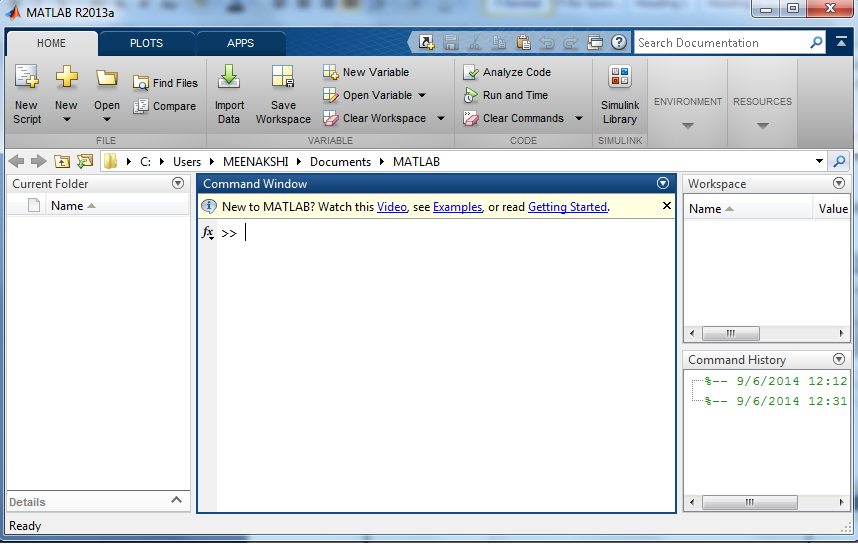
When you launch MATLAB you are presented with the MATLAB desktop which, by default, is divided into 4 windows:
This is the main window, and contains the command prompt (�). This is where you will type all commands.
It displays a list of previously typed commands. The command history persists across multiple sessions and commands can be dragged into the Command Window and edited, or double-clicked to run them again.
Lists all the variables you have generated in the current session. It shows the type and size of variables, and can be used to quickly plot, or inspect the values of variables.
This Window allows you to access your project folders and files.

A line of code or its output can exceed the width of the Command Window, requiring you to use the horizontal scroll bar to view the entire line. To break a single line of input or output into multiple lines to fit within the current width of the Command Window:
On the Home tab, in the Environment section, select Preferences > Command Window.
Select Wrap Lines.
Click OK.
To help you identify MATLAB elements, some entries appearing different colours in the Command Window. This is known as syntax highlighting. By default:
You can change syntax highlighting preferences. On the Home tab, in the Environment section, select Preferences > Editor/Debugger > Languages.
In the event MATLAB experiences a segmentation violation or other serious problem, the MATLAB System Error dialog box opens to notify you about the problem. When this occurs, the internal state of MATLAB is unreliable and not suitable for further use. You should exit as soon as possible and then restart. However, you might want to first try to save your work in progress.
To exit and restart without trying to save your work, follow these steps:
To try to save your work in progress before exiting and restarting MATLAB, follow these steps:
If MATLAB terminates unexpectedly, you might lose information. After you start MATLAB again, you can try these suggestions to recover some of the information.
Some of the above suggestions refer to actions you might have needed to take during the session when MATLAB terminated. If you did not take those actions, consider regularly performing them to help you recover from any future abnormal terminations you might experience.
Learning outcomes
After completing this chapter, you will be able to understand:
Type a valid expression, for example,
>>10 + 5
% Adding two numbers
And press ENTER. MATLAB executes it immediately and the result returned is:
ans = 15
Let us take up few more examples on basic calculations:
>> 36-24
% Subtraction of Two numbers
ans = 12
>> 7132 * 30.4
% Multiplication of two numbers
ans = 2.1681e+05
>> 8/0
% Divide by zero
ans = Inf
>> 4 ^ 3
% 4 raised to the power of 3
ans = 64
>> sin (pi /2)
% sine of angle 90 degrees
ans = 1
>> sin (2 * pi)
ans = -2.4493e-16
>> 2 + 3i % Complex numbers can be entered using the basic imaginary unit i or j.
ans = 2.0000 + 3.0000i
>> exp (1)
ans = 2.7183
>> x=6;
>> y=x+2
y = 8
>> atan(1) % atan(x) correspond to tan−1(x)
ans = 0.7854
>> log10(0.5) % log10(x) correspond to log10(x)
ans = -0.3010MATLAB supports the following commonly used operators and special characters:
Operator |
Purpose |
+ |
Plus; addition operator. |
- |
Minus; subtraction operator. |
* |
Scalar and matrix multiplication operator. |
.* |
Array multiplication operator. |
^ |
Scalar and matrix exponentiation operator. |
.^ |
Array exponentiation operator. |
\ |
Left-division operator. |
/ |
Right-division operator. |
.\ |
Array left-division operator. |
./ |
Array right-division operator. |
: |
Colon; generates regularly spaced elements and represents an entire row or column. |
( ) |
Parentheses; encloses function arguments and array indices; overrides precedence. |
[ ] |
Brackets; enclosures array elements. |
. |
Decimal point. |
… |
Ellipsis; line-continuation operator |
, |
Comma; separates statements and elements in a row |
; |
Semicolon; separates columns and suppresses display. |
% |
Percent sign; designates a comment and specifies formatting. |
_ |
Quote sign and transpose operator. |
._ |
Nonconjugated transpose operator. |
= |
Assignment operator. |
MATLAB supports the following special variables and constants:
Name |
Meaning |
ans |
Most recent answer. |
eps |
Accuracy of floating-point precision. |
i,j |
The imaginary unit √-1. |
Inf |
Infinity. |
NaN |
Undefined numerical result (not a number). |
pi |
The number π |
Learning outcomes
After completing this chapter, you will be able to understand:
MATLAB does not require any type declaration or dimension statements. Whenever MATLAB encounters a new variable name, it creates the variable and allocates appropriate memory space.
If the variable already exists, then MATLAB replaces the original content with new content and allocates new storage space.
For example,
X=2;
The following table shows the most commonly used data types in MATLAB:
Data Type |
Description |
int8 |
8-bit signed integer |
uint8 |
8-bit unsigned integer |
int16 |
16-bit signed integer |
uint16 |
16-bit unsigned integer |
int32 |
32-bit signed integer |
uint32 |
32-bit unsigned integer |
int64 |
64-bit signed integer |
uint64 |
64-bit unsigned integer |
single |
single precision numerical data |
double |
double precision numerical data |
logical |
logical values of 1 or 0, represent true and false respectively |
char |
character data (strings are stored as vector of characters) |
cell array |
array of indexed cells, each capable of storing an array of a different dimension and data type |
structure |
C-like structures, each structure having named fields capable of storing an array of a different dimension and data type |
function handle |
pointer to a function |
user classes |
objects constructed from a user-defined class |
java classes |
objects constructed from a Java class |
Let us consider few examples:
For example, to store 625 as a 16-bit signed integer assigned to variable x, type
>> x=int16(625)
x =
625
>> x=625.499;
>> int16(x)
ans =
625
>> y=x+0.001;
>> int16(y)
ans =
626
>> int16(y) * 4.39
ans =
2748
>> str='Hello World'
str =
Hello World
>> n=56789
n =
56789
>> d = double(n)
d =
56789
>> un = uint32(234.50)
un =
235
>> rn = 92347.673421
rn =
9.2348e+04
>> c = int32(rn)
c =
92348
>> uint8(2^8) % 2^8 = 256
ans =
255
>> int64(2^63) % 2^63 = 9223372036854775808
ans =
9223372036854775807
MATLAB provides various functions for converting from one data type to another. The following table shows the data type conversion functions:
Function |
Purpose |
char |
Convert to character array (string) |
int2str |
Convert integer data to string |
mat2str |
Convert matrix to string |
num2str |
Convert number to string |
str2double |
Convert string to double-precision value |
str2num |
Convert string to number |
native2unicode |
Convert numeric bytes to Unicode characters |
unicode2native |
Convert Unicode characters to numeric bytes |
base2dec |
Convert base N number string to decimal number |
bin2dec |
Convert binary number string to decimal number |
dec2base |
Convert decimal to base N number in string |
dec2bin |
Convert decimal to binary number in string |
dec2hex |
Convert decimal to hexadecimal number in string |
hex2dec |
Convert hexadecimal number string to decimal number |
hex2num |
Convert hexadecimal number string to double-precision number |
num2hex |
Convert singles and doubles to IEEE hexadecimal strings |
cell2mat |
Convert cell array to numeric array |
cell2struct |
Convert cell array to structure array |
cellstr |
Create cell array of strings from character array |
mat2cell |
Convert array to cell array with potentially different sized cells |
num2cell |
Convert array to cell array with consistently sized cells |
struct2cell |
Convert structure to cell array |
For example
>> name = 'Asha'; age =21;
>> X=[name, ' Will be ',num2str(age),' this year. '];
>> disp(X)
Asha Will be 21 this year.
MATLAB provides various functions for identifying data type of a variable.
Following table provides the functions for determining the data type of a variable:
Function |
Purpose |
is |
Detect state |
isa |
Determine if input is object of specified class |
iscell |
Determine whether input is cell array |
iscellstr |
Determine whether input is cell array of strings |
ischar |
Determine whether item is character array |
isfield |
Determine whether input is structure array field |
isfloat |
Determine if input is floating-point array |
ishghandle |
True for Handle Graphics object handles |
isinteger |
Determine if input is integer array |
isjava |
Determine if input is Java object |
islogical |
Determine if input is logical array |
isnumeric |
Determine if input is numeric array |
isobject |
Determine if input is MATLAB object |
isreal |
Check if input is real array |
isscalar |
Determine whether input is scalar |
isstr |
Determine whether input is character array |
isstruct |
Determine whether input is structure array |
isvector |
Determine whether input is vector |
class |
Determine class of object |
validateattributes |
Check validity of array |
whos |
List variables in workspace, with sizes and types |
Example 1:
>> a=9;
>> isinteger(a)
ans =
0
Isinteger - True for arrays of integer data type.
isinteger(A) returns true if A is an array of integer data type and false otherwise.
>> isfloat(a)
ans =
1
isfloat - True for floating point arrays, both single and double.
isfloat(A) returns true if A is a floating point array and false otherwise.
>> isvector(a)
ans =
1
isvector True if input is a vector.
isvector(V) returns logical 1 (true) if SIZE(V) returns [1 n] or [n 1]
with a nonnegative integer value n, and logical 0 (false) otherwise.
>> isscalar(a)
ans =
1
isscalar True if input is a scalar.
isscalar(S) returns logical 1 (true) if SIZE(S) returns [1 1] and
logical 0 (false) otherwise.
>> isnumeric(a)
ans =
1
>> ischar(a)
ans =
0
>> iscell(a)
ans =
0
>> isreal(a)
ans =
1
Example 2:
>> b=98.76;
>> iscell(b)
ans =
0
>> ischar(b)
ans =
0
>> isfloat(b)
ans =
1
>> isinteger(b)
ans =
0
>> isnumeric(b)
ans =
1
>> isreal(b)
ans =
1
>> isscalar(b)
ans =
1
>> isvector(b)
ans =
1
Example 3:
>> str='Hello World';
>> isinteger(str)
ans =
0
>> isvector(str)
ans =
1
>> isscalar(str)
ans =
0
>> isnumeric(str)
ans =
0
>> isfloat(str)
ans =
0
>> ischar(str)
ans =
1
Learning outcomes
After completing this chapter, you will be able to understand:
An operator is a symbol that tells the compiler to perform specific mathematical or logical manipulations. MATLAB is designed to operate primarily on whole matrices and arrays. Therefore, operators in MATLAB work both on scalar and non-scalar data. MATLAB allows the following types of elementary operations:
MATLAB allows two different types of arithmetic operations:
Matrix arithmetic operations are same as defined in linear algebra. Array operations are executed element by element, both on one-dimensional and multidimensional array.
The matrix operators and array operators are differentiated by the period (.) symbol. However, as the addition and subtraction operation is same for matrices and arrays, the operator is same for both cases. The following table gives brief description of the operators:
Operator |
Description |
+ |
Addition or unary plus. A+B adds A and B. A and B must have the same size, unless one is a scalar. A scalar can be added to a matrix of any size. |
- |
Subtraction or unary minus. A-B subtracts B from A. A and B must have the same size, unless one is a scalar. A scalar can be subtracted from a matrix of any size. |
* |
Matrix multiplication. C = A*B is the linear algebraic product of the matrices A and B. More precisely, |
.* |
Array multiplication. A.*B is the element-by-element product of the arrays A and B. A and B must have the same size, unless one of them is a scalar. |
/ |
Slash or matrix right division. B/A is roughly the same as B*inv(A). More precisely, B/A = (A'\B')'. |
./ |
Array right division. A./B is the matrix with elements A(i,j)/B(i,j). A and B must have the same size, unless one of them is a scalar. |
\ |
Backslash or matrix left division. If A is a square matrix, A\B is roughly the same as inv(A)*B, except it is computed in a different way. If A is an n-by-n matrix and B is a column vector with n components, or a matrix with several such columns, then X = A\B is the solution to the equation AX = B. A warning message is displayed if A is badly scaled or nearly singular. |
.\ |
Array left division. A.\B is the matrix with elements B(i,j)/A(i,j). A and B must have the same size, unless one of them is a scalar. |
^ |
Matrix power. X^p is X to the power p, if p is a scalar. If p is an integer, the power is computed by repeated squaring. If the integer is negative, X is inverted first. For other values of p, the calculation involves eigenvalues and eigenvectors, such that if [V,D] = eig(X), then X^p = V*D.^p/V. |
.^ |
Array power. A.^B is the matrix with elements A(i,j) to the B(i,j) power. A and B must have the same size, unless one of them is a scalar. |
' |
Matrix transpose. A' is the linear algebraic transpose of A. For complex matrices, this is the complex conjugate transpose. |
.' |
Array transpose. A.' is the array transpose of A. For complex matrices, this does not involve conjugation. |
For example:
>> P=20;
>> Q=10;
>> S=P+Q
S =
30
>> D=P-Q
D =
10
>> M=P*Q
M =
200
>> R=P/Q
R =
2
>> B=P\Q
B =
0.5000
>> X=P^Q
X =
1.0240e+13
Relational operators can also work on both scalar and non-scalar data. Relational operators for arrays perform element-by-element comparisons between two arrays and return a logical array of the same size, with elements set to logical 1 (true) where the relation is true and elements set to logical 0 (false) where it is not.
The following table shows the relational operators available in MATLAB:
Operator |
Description |
< |
Less than |
<= |
Less than or equal to |
> |
Greater than |
>= |
Greater than or equal to |
== |
Equal to |
~= |
Not equal to |
Example1:
>> I=256;
>> J=255;
>> I==J
ans =
0
>> I>J
ans =
1
>> I<J
ans =
0
>> I~=J
ans =
1
Example2:
>> N=10;
>> M=10;
>> N==M
ans =
1
>> N>=M
ans =
1
>> N<=M
ans =
1
>> N>M
ans =
0
>> N<M
ans =
0
>> N~=M
ans =
0
MATLAB offers two types of logical operators and functions:
Element-wise logical operators operate element-by-element on logical arrays. The symbols &, |, and ~ are the logical array operators AND, OR, and NOT.
Short-circuit logical operators allow short-circuiting on logical operations. The symbols && and || are the logical short-circuit operators AND and OR.
For Example:
>> L=[0 1 1 0 1];
>> M=[1 1 0 0 1];
>> L&M
ans =
0 1 0 0 1
>> L|M
ans =
1 1 1 0 1
>> ~L %Complements each element of the input array
ans =
1 0 0 1 0
>> xor(L,M)
ans =
1 0 1 0 0
Logical operators |
Equivalent Function |
L & M |
and(L,M) |
L | M |
or(L,M) |
~L |
not(L) |
Bitwise operator works on bits and performs bit-by-bit operation. The truth tables for &, |, and ^ are as follows:
p |
q |
p & q |
p | q |
p ^ q |
0 |
0 |
0 |
0 |
0 |
0 |
1 |
0 |
1 |
1 |
1 |
1 |
1 |
1 |
0 |
1 |
0 |
0 |
1 |
1 |
Assume if a = 60; and b = 13; Now in binary format they will be as follows:
>> a = 60; % 60 = 0011 1100
b = 13; % 13 = 0000 1101
c = bitand(a, b) % 12 = 0000 1100
c = bitor(a, b) % 61 = 0011 1101
c = bitxor(a, b) % 49 = 0011 0001
c = bitshift(a, 2) % 240 = 1111 0000 */
c = bitshift(a,-2) % 15 = 0000 1111 */
c =
12
c =
61
c =
49
c =
240
c =
15
A = 0011 1100
B = 0000 1101
-----------------
A&B = 0000 1100
A|B = 0011 1101
A^B = 0011 0001
~A = 1100 0011
MATLAB provides various functions for bit-wise operations like 'bitwise and', 'bitwise or' and 'bitwise not' operations, shift operation, etc.
The following table shows the commonly used bitwise operations:
| Function | Purpose |
bitand(a, b) |
Bit-wise AND of integers a and b |
bitcmp(a) |
Bit-wise complement of a |
bitget(a,pos) |
Get bit at specified position pos, in the integer array a |
bitor(a, b) |
Bit-wise OR of integers a and b |
bitset(a, pos) |
Set bit at specific location pos of a |
bitshift(a, k) |
Returns a shifted to the left by k bits, equivalent to multiplying by 2k. Negative values of k correspond to shifting bits right or dividing by 2|k| and rounding to the nearest integer towards negative infinite. Any overflow bits are truncated. |
bitxor(a, b) |
Bit-wise XOR of integers a and b |
swapbytes |
Swap byte ordering |
MATLAB provides various functions for set operations, like union, intersection and testing for set membership, etc.
The following table shows some commonly used set operations:
Function |
Description |
intersect(A,B) |
Set intersection of two arrays; returns the values common to both A and B. The values returned are in sorted order. |
intersect(A,B,'rows') |
Treats each row of A and each row of B as single entities and returns the rows common to both A and B. The rows of the returned matrix are in sorted order. |
ismember(A,B) |
Returns an array the same size as A, containing 1 (true) where the elements of A are found in B. Elsewhere, it returns 0 (false). |
ismember(A,B,'rows') |
Treats each row of A and each row of B as single entities and returns a vector containing 1 (true) where the rows of matrix A are also rows of B. Elsewhere, it returns 0 (false). |
issorted(A) |
Returns logical 1 (true) if the elements of A are in sorted order and logical 0 (false) otherwise. Input A can be a vector or an N-by-1 or 1-by-N cell array of strings. A is considered to be sorted if A and the output of sort(A) are equal. |
issorted(A, 'rows') |
Returns logical 1 (true) if the rows of two-dimensional matrix A are in sorted order, and logical 0 (false) otherwise. Matrix A is considered to be sorted if A and the output of sortrows(A) are equal. |
setdiff(A,B) |
Set difference of two arrays; returns the values in A that are not in B. The values in the returned array are in sorted order. |
setdiff(A,B,'rows') |
Treats each row of A and each row of B as single entities and returns the rows from A that are not in B. The rows of the returned matrix are in sorted order. |
setxor |
Set exclusive OR of two arrays |
union |
Set union of two arrays |
unique |
Unique values in array |
>> A=[1 2 3 4 5 6];
>> B=[5 6 7];
>> C=intersect(A,B)
C =
5 6
>> U=union(A,B)
U =
1 2 3 4 5 6 7
>> N=[2 8 4 9 4 2 1];
>> U=unique(N)
U =
1 2 4 8 9
>> A=[5 3 4 2];
>> B=[2 4 4 4 6 8];
>> IM=ismember(A,B) %Determine which elements of A are also in B
IM =
0 0 1 1
>> A=[5 1 3 3 3];
>> B=[4 1 2];
>> C=setxor(A,B) % returns the values of A and B that are not in their intersection.
C =
2 3 4 5
Learning outcomes
After completing this chapter, you will be able to understand:
MATLAB provides the following input and output related commands:
Command |
Purpose |
disp |
Displays contents of an array or string. |
fscanf |
Read formatted data from a file. |
format |
Controls screen-display format. |
fprintf |
Performs formatted writes to screen or file. |
input |
Displays prompts and waits for input. |
; |
Suppresses screen printing. |
disp(X) displays the array, without printing the array name. In all other ways it's the same as leaving the semicolon off an expression except that empty arrays don't display. If X is a string, the text is displayed.
Example:
>> X='Hello World';
>> disp(X)
Hello World
fscanf command read data from text file
Syntax
A = fscanf(fileID, format)
A = fscanf(fileID, format, sizeA)
[A, count] = fscanf(...)
Description
A = fscanf(fileID, format) reads and converts data from a text file into array A in column order. To convert, fscanf uses the format and the encoding scheme associated with the file. To set the encoding scheme, use fopen. The fscanf function reapplies the format throughout the entire file, and positions the file pointer at the end-of-file marker. If fscanf cannot match the format to the data, it reads only the portion that matches into A and stops processing.
A = fscanf(fileID, format, sizeA) reads sizeA elements into A, and positions the file pointer after the last element read. sizeA can be an integer, or can have the form [m,n].
[A, count] = fscanf(...) returns the number of elements that fscanf successfully reads.
For example:
Read the contents of a file. fscanf reuses the format throughout the file, so you do not need a control loop:
% Create a file with an exponential table
x = 0:.1:1;
y = [x; exp(x)];
fid = fopen('exp.txt', 'w');
fprintf(fid, '%6.2f %12.8f\n', y);
fclose(fid);
% Read the data, filling A in column order
% First line of the file:
% 0.00 1.00000000
fid = fopen('exp.txt');
A = fscanf(fid, '%g %g', [2 inf]);
fclose(fid);
% Transpose so that A matches
% the orientation of the file
A = A';
They support the following format codes:
Format Code |
Purpose |
%s |
Format as a string. |
%d |
Format as an integer. |
%f |
Format as a floating point value. |
%e |
Format as a floating point value in scientific notation. |
%g |
Format in the most compact form: %f or %e. |
\n |
Insert a new line in the output string. |
\t |
Insert a tab in the output string. |
By default, MATLAB displays numbers with four decimal place values. This is known as short format.However, if you want more precision, you need to use the format command. The format long command displays 16 digits after decimal.
format command does not affect how MATLAB computations are done. Computations on float variables, namely single or double, are done in appropriate floating point precision, no matter how those variables are displayed. Computations on integer variables are done natively in integer. Integer variables are always displayed to the appropriate number of digits for the class, for example, 3 digits to display the INT8 range -128:127.
format SHORT and LONG do not affect the display of integer variables.
The format function has the following forms used for numeric display:
Format Function |
Display up to |
format short |
Four decimal digits (default). |
format long |
16 decimal digits. |
format short e |
Five digits plus exponent. |
format long e |
16 digits plus exponents. |
format bank |
Two decimal digits. |
format + |
Positive, negative, or zero. |
format rat |
Rational approximation. |
format compact |
Suppresses some line feeds. |
format loose |
Resets to less compact display mode. |
For example:
>> format long
>> pi
ans =
3.141592653589793
--------------------------------
>> format short
>> pi
ans =
3.1416
--------------------------------
>> format bank
>> pi
ans =
3.14
--------------------------------
>> format short e
>> e=5.6789 *1.234
e =
7.0078e+00
The format short e command allows displaying in exponential form with four decimal places plus the exponent.
--------------------------------
For example,
>> format long e
>> z=8.31456/0.0456
z =
1.823368421052631e+02
The format long e command allows displaying in exponential form with four decimal places plus the exponent.
The format rat command gives the closest rational expression resulting from a calculation. For example,
format rat
>> 4.638/4.9
ans =
fprintf command, Write formatted data to text file.
fprintf(FID, FORMAT, A, ...) applies the FORMAT to all elements of array A and any additional array arguments in column order, and writes the data to a text file. FID is an integer file identifier. Obtain FID from FOPEN, or set it to 1 (for standard output, the screen) or 2 (standard error). fprintf uses the encoding scheme specified in the call to FOPEN.
fprintf(FORMAT, A, ...) formats data and displays the results on the screen.
COUNT = fprintf(...) returns the number of bytes that fprintf writes.
FORMAT is a string that describes the format of the output fields, and can include combinations of the following:
Conversion specifications, which include a % character, a conversion character (such as d, i, o, u, x, f, e, g, c, or s), and optional flags, width, and precision fields. For more details, type "doc fprintf" at the command prompt.
Literal text to print.
Escape characters, including:
\b |
Backspace |
\f |
Form feed |
\n |
New line |
\r |
Carriage return |
\t |
Horizontal tab |
'' |
Single quotation mark |
%% |
Percent character |
\\ |
Backslash |
\xN |
Hexadecimal number N |
\N |
Octal number N |
For most cases, \n is sufficient for a single line break. However, if you are creating a file for use with Microsoft Notepad, specify a combination of \r\n to move to a new line.
If you apply an integer or string conversion to a numeric value that contains a fraction, MATLAB overrides the specified conversion, and uses %e.
Numeric conversions print only the real component of complex numbers.
For example:
>> fprintf('Work hard, Have fun, Make History\n')
Work hard, Have fun, Make History
>> X=10; Y=20;
>> fprintf( ' %d is greater than %d\n ',Y,X)
input command prompt for user input.
NUM = input(PROMPT)
Displays the PROMPT string on the screen, waits for input from the keyboard, evaluates any expressions in the input, and returns the value in NUM. To evaluate expressions, input accesses variables in the current workspace. If you press the return key without entering anything, input returns an empty matrix.
STR = input(PROMPT,'s')
returns the entered text as a MATLAB string, without evaluating expressions.
To create a prompt that spans several lines, use '\n' to indicate each new line. To include a backslash ('\') in the prompt, use '\\'.
For example:
>> Name = input(' Enter your Name : ','s');
Enter your Name : Meenakshi
>> fprintf('Hello %s, How are you ? \n',Name)
Hello Meenakshi, How are you ?
Learning outcomes
After completing this chapter, you will be able to understand:
In MATLAB environment, a variable is an array or matrix. It is a symbolic name associated with a value. The current value of the variable is the data actually stored in the variable. Variables are very important in MATLAB because they allow us to easily reference complex and changing data. Variables can reference different data types like scalars, vectors, arrays, matrices, strings etc. Variable names consist of a letter followed by any number of letters, digits or underscore.
|
|
Variables you have created in the current MATLAB session can be viewed in a couple of different ways. The Workspace lists all the current variables and allows you to easily inspect their type and size, as well as quickly plot them. Alternatively, the whos command can be typed in the Command Window and provides information about the type and size of current variables.
You can assign variables in a simple way.
For example,
>>x = 9 % defining x and initializing it with a value
x =
9
Let us check another example,
>>x = sqrt(64) % defining x and initializing it with an expression
x =
8
|
For example,
>>sqrt(64)
ans =
8
You can use this variable ans:
>>978/ans
ans =
122.25
--------------------------------
Let's look at another example:
>> x= 4*9;
>> y = x*6.25
y =
225
You can have multiple assignments on the same line. For example,
>> a=2;
>> b=5;
>> c=a*b
c =
10
>> d=b-c
d =
-5
>> e=a*b
e =
10
>> f=a/b
f =
0.4000
>>a = 2; b = 7;
>>c = a * b
c =
14
MATLAB provides various commands for managing a session. The following table provides all such commands:
Command |
Purpose |
clc |
Clears command window. |
clear |
Removes variables from memory. |
exist |
Checks for existence of file or variable. |
global |
Declares variables to be global. |
help |
Searches for a help topic. |
lookfor |
Searches help entries for a keyword. |
Quit |
Stops MATLAB. |
Who |
Lists current variables. |
Whos |
Lists current variables (long display). |
diary |
Save command window text to file |
home |
Send cursor home |
iskeyword |
Determine whether input is MATLAB keyword |
Commandhistory |
Open command History window, or select it if already open |
commandwindow |
Open command window, or select it if already open |
Oops! I have forgotten the Variables.
The “who” command displays all the variable names you have used.
>> who
Your variables are:
a ans b c d e f x y
----------------------------------------------------
>> whos
Name |
Size |
Bytes |
Class |
Attributes |
a |
1 X 1 |
8 |
double |
|
ans |
1 X 1 |
8 |
double |
|
b |
1 X 1 |
8 |
double |
|
c |
1 X 1 |
8 |
double |
|
d |
1 X 1 |
8 |
double |
|
e |
1 X 1 |
8 |
double |
|
f |
1 X 1 |
8 |
double |
|
x |
1 X 1 |
8 |
double |
|
y |
1 X 1 |
8 |
double |
|
The “whos” command displays little more about the variables:
Variables currently in memory
Type of each variables
Memory allocated to each variable
Whether they are complex variables or no
clear x % it will delete x, won't display anything
clear % it will delete all variables in the workspace peacefully and unobtrusively
>> lookfor euler
rigidode |
- |
Euler equations of a rigid body without external forces. |
euler2quat |
- |
Obsolete conversion for Euler angles to quaternion. |
quat2euler |
- |
Obsolete conversion for quaternion to Euler angles. |
bweuler |
- |
Euler number of binary image. |
>> help home
home Send the cursor home.
home moves the cursor to the upper left corner of the window. When using the MATLAB desktop, it also scrolls the visible text in the window up out of view; you can use the scroll bar to see what was previously on the screen.
>> iskeyword('break')
ans =
1
iskeyword Check if input is a keyword.
iskeyword(S) returns one if S is a MATLAB keyword, and 0 otherwise. MATLAB keywords cannot be used as variable names.
MATLAB indicates matched and mismatched delimiters, such as parentheses, brackets, and braces, to help you avoid syntax errors. MATLAB also indicates paired language keywords, such as for, if, while, else, and end statements.
By default, MATLAB indicates matched and mismatched delimiters and paired language keywords as follows:
Type a closing delimiter—MATLAB briefly highlights the corresponding opening delimiter.
Type more closing delimiters than opening delimiters—MATLAB beeps.
Use the arrow keys to move the cursor over one delimiter—MATLAB briefly underlines both delimiters in a pair. If no corresponding delimiter exists, MATLAB puts a strike line through the unmatched delimiter.
If a matching delimiter exists, but it is not visible on the screen, a pop-up window appears and shows the line containing the matching delimiter. Click in the pop-up window to go to that line.
You can change delimiter matching indicators, and when and if they appear. On the Home tab, in the Environment section, select Preferences > Keyboard.
Learning outcomes
After completing this chapter, you will be able to understand:
A vector is a one-dimensional array of numbers. MATLAB allows creating two types of vectors:
Row vectors are created by enclosing the set of elements in square brackets, using space or comma to delimit the elements.
For example
>> rv=[1 2 3 4 5]
rv =
1 2 3 4 5
Column vectors are created by enclosing the set of elements in square brackets, using semicolon(;) to delimit the elements.
>> rc=[6;7;8;9;10]
rc =
6
7
8
9
10
You can reference one or more of the elements of a vector in several ways. The ith component of a vector v is referred as v(i).
For example:
>> v = [ 1; 2; 3; 4; 5; 6]; % creating a column vector of 6 elements
v(3)
ans =
3
When you reference a vector with a colon, such as v(:), all the components of the vector are listed.
>> v = [ 1; 2; 3; 4; 5; 6];
% creating a column vector of 6 elements
v(:)
ans =
1
2
3
4
5
6
>> rv=[1 2 3 4 5 6 7 8 9];
>> sub_rv=(3:7)
sub_rv =
3 4 5 6 7
You can add or subtract two vectors. Both the operand vectors must be of same type and have same number of elements.
>> A=[ 4 8 6 7 1];
>> B=[ 1 6 8 5 3];
>> C=A+B;
>> disp(C)
5 14 14 12 4
>> D=A-B;
>> disp(D)
3 2 -2 2 -2
When you multiply a vector by a number, this is called the scalar multiplication. Scalar multiplication produces a new vector of same type with each element of the original vector multiplied by the number.
>> s=[3 6 9 4 5];
>> sm= 5*s
sm =
15 30 45 20 25
The transpose operation changes a column vector into a row vector and vice versa. The transpose operation is represented by a single quote(').
>> r=[1 2 3 4];
>> tr=r';
>> disp(tr)
1
2
3
4
>> c=[5;6;7;8;];
>> tc=c';
>> disp(tc)
5 6 7 8
If you have two row vectors r1 and r2 with n and m number of elements, to create a row vector r of n plus m elements, by appending these vectors, you write:
r = [r1,r2]
You can also create a matrix r by appending these two vectors, the vector r2, will be the second row of the matrix:
r = [r1;r2]
However, to do this, both the vectors should have same number of elements.
Similarly, you can append two column vectors c1 and c2 with n and m number of elements. To create a column vector c of n plus m elements, by appending these vectors, you write:
c = [c1; c2]
You can also create a matrix c by appending these two vectors; the vector c2 will be the second column of the matrix:
c = [c1, c2]
However, to do this, both the vectors should have same number of elements.
>> r1=[1 2 3 4];
>> r2=[5 6 7 8];
>> r=[r1,r2]
r =
1 2 3 4 5 6 7 8
----------------------------------------------------------------------------
>> c1=[5; 2; 7; 3];
>> c2=[8; 4; 7; 1];
>> c=[c1;c2]
c =
5
2
7
3
8
4
7
1
Dot product of two vectors a = (a1, a2, …, an) and b = (b1, b2, …, bn) is given by:
a.b = ∑(ai.bi)
Dot product of two vectors a and b is calculated using the dot function.
>> a=[1 3 5];
>> b=[2 4 6];
>> dp=dot(a,b);
>> disp('Dot product of a.b = '); disp(dp);
Dot product of a.b = 44
cross(A,B) returns the Cross Product of A and B. Cross product of two vectors a and b is calculated using the cross function.
If A and B are vectors, then they must have a length of 3.
>> a=[1 3 5];
>> b=[2 4 6];
>> cp=cross(a,b);
>> disp('cross product of axb = ');
disp(cp);
cross product of axb =
-2 4 -2
MATLAB allows you to create a vector with uniformly spaced elements.
To create a vector v with the first element f, last element l, and the difference between elements is any real number n, we write:
v = [f : n : l]
For example
>> u=[1:10]
u =
1 2 3 4 5 6 7 8 9 10
>> v=[1:2:20]
v =
1 3 5 7 9 11 13 15 17 19
>> w= u.^2
w =
1 4 9 16 25 36 49 64 81 100
>> x=u+v-1
x =
1 4 7 10 13 16 19 22 25 28
>> z=[30:-3:1]
z =
30 27 24 21 18 15 12 9 6 3
>> l=length(z) %returns the number of elements in an array
l =
10
>> max(z) %returns maximum value of an array
ans =
30
>> min(z) %returns minimum value of an array
ans =
3
>> s=[23 54 67 99 12 55 15 80 73]
s =
23 54 67 99 12 55 15 80 73
>> sort(s) % Sort in ascending order.
ans =
12 15 23 54 55 67 73 80 99
Learning outcomes
After completing this chapter, you will be able to understand:
A matrix is a two-dimensional array of numbers.
In MATLAB, a matrix is created by entering each row as a sequence of space or comma separated elements, and end of a row is demarcated by a semicolon. For example, let us create a 3-by-3 matrix as:
>> A=[1 2 3; 4 5 6; 7 8 9]
A =
1 2 3
4 5 6
7 8 9
To reference a particular element in a matrix, specify its row and column number using the following syntax, where A is the matrix variable. Always specify the row first and column second: A(row, column)
>> A(3,2)
ans =
8
>> A(1,3)
ans =
3
>> A
A =
1 2 3 4
3 5 8 9
1 6 3 4
9 8 7 3
>> A(:,4)
ans =
4
9
4
3
>> A(1,:)
ans =
1 2 3 4
To reference all the elements in the nth row we type A(n,:).
You can also select the elements in the mth through nth columns, for this we write: a(:,m:n)
Let us create a smaller matrix taking the elements from the second and third columns:
>>a = [ 1 2 3 4 5; 2 3 4 5 6; 3 4 5 6 7; 4 5 6 7 8];
>>a(:, 2:3)
ans =
2 3
3 4
4 5
5 6
In the same way, you can create a sub-matrix taking a sub-part of a matrix.
For example, let us create a sub-matrix sa taking the inner subpart of a:
3 4 5
4 5 6
To do this, write:
>>a = [ 1 2 3 4 5; 2 3 4 5 6; 3 4 5 6 7; 4 5 6 7 8];
>>sa = a(2:3,2:4)
>>sa =
3 4 5
4 5 6
You can refer to the elements of a MATLAB matrix with a single subscript, A(k). MATLAB stores matrices and arrays not in the shape that they appear when displayed in the MATLAB Commandwindow, but as a single column of elements. This single column is composed of all of the columns from the matrix, each appended to the last.
So, matrix A
A = [2 6 9; 4 2 8; 3 5 1]
A =
2 6 9
4 2 8
3 5 1
is actually stored in memory as the sequence
2, 4, 3, 6, 2, 5, 9, 8, 1
For the 4-by-4 matrix A shown below, it is possible to compute the sum of the elements in the fourth column of A by typing
A =
1 2 3 4
3 5 8 9
1 6 3 4
9 8 7 3
>> sum=A(1,4)+A(2,4)+A(3,4)+A(4,4)
sum =
20
----------------------------------------------------------
>> sum_e=A(1,3)+A(2,4)+A(3,1)+A(4,2)
sum_e =
21
You can reduce the size of this expression using the colon operator. Subscript expressions involving colons refer to portions of a matrix. The expression A(1:m, n) refers to the elements in rows 1 through m of column n of matrix A.
>> A(1:4,3)
ans =
3
8
3
7
>> A(4,1:3)
ans =
9 8 7
You can delete an entire row or column of a matrix by assigning an empty set of square braces [] to that row or column. Basically, [] denotes an empty array.
For example, let us delete the fourth row of A :
>> A = [1 2 4 5; 6 7 8 9; 4 6 2 3; 4 3 6 2]
A =
1 2 4 5
6 7 8 9
4 6 2 3
4 3 6 2
>> A(4,:)=[]
A =
1 2 4 5
6 7 8 9
4 6 2 3
Next, let us delete the 4th column of A:
A =
1 2 4 5
6 7 8 9
4 6 2 3
4 3 6 2
>> A(:,4)=[]
A =
1 2 4
6 7 8
4 6 2
4 3 6
You can add or subtract matrices. Both the operand matrices must have the same number of rows and columns.
>> A = [ 1 2 3 ; 4 5 6; 7 8 9];
B = [ 7 5 6 ; 2 0 8; 5 7 1];
C = A + B
D = A - B
C =
8 7 9
6 5 14
12 15 10
D =
-6 -3 -3
2 5 -2
2 1 8
You can divide two matrices using left (\) or right (/) division operators. Both the operand matrices must have the same number of rows and columns.
>> A = [ 1 2 3 ; 4 5 6; 7 8 9];
B = [ 7 5 6 ; 2 0 8; 5 7 1];
C = A./ B
D = A.\ B
C =
0.1429 0.4000 0.5000
2.0000 Inf 0.7500
1.4000 1.1429 9.0000
D =
7.0000 2.5000 2.0000
0.5000 0 1.3333
0.7143 0.8750 0.1111
When you add, subtract, multiply or divide a matrix by a number, this is called the scalar operation.
Scalar operations produce a new matrix with same number of rows and columns with each element of the original matrix added to, subtracted from, multiplied by or divided by the number.
>> a = [ 10 12 23 ; 14 8 6; 27 8 9];
b = 2;
c = a + b
d = a - b
e = a * b
f = a / b
c =
12 14 25
16 10 8
29 10 11
d =
8 10 21
12 6 4
25 6 7
e =
20 24 46
28 16 12
54 16 18
f =
5.0000 6.0000 11.5000
7.0000 4.0000 3.0000
13.5000 4.0000 4.5000
The transpose operation switches the rows and columns in a matrix. It is represented by a single quote(').
>> A = [ 1 2 3 ; 4 5 6; 7 8 9]
A =
1 2 3
4 5 6
7 8 9
>> T=A'
T =
1 4 7
2 5 8
3 6 9
You can concatenate two matrices to create a larger matrix. The pair of square brackets '[]' is the concatenation operator.
MATLAB allows two types of concatenations:
When you concatenate two matrices by separating those using commas, they are just appended horizontally. It is called horizontal concatenation.
Alternatively, if you concatenate two matrices by separating those using semicolons, they are appended vertically. It is called vertical concatenation.
>> a = [ 10 12 23 ; 14 8 6; 27 8 9]
b = [ 12 31 45 ; 8 0 -9; 45 2 11]
c = [a, b]
d = [a; b]
a =
10 12 23
14 8 6
27 8 9
b =
12 31 45
8 0 -9
45 2 11
c =
10 12 23 12 31 45
14 8 6 8 0 -9
27 8 9 45 2 11
d =
10 12 23
14 8 6
27 8 9
12 31 45
8 0 -9
45 2 11
Consider two matrices A and B. If A is an m x n matrix and B is a n x p matrix, they could be multiplied together to produce an m x n matrix C. Matrix multiplication is possible only if the number of columns n in A is equal to the number of rows n in B.
In matrix multiplication, the elements of the rows in the first matrix are multiplied with corresponding columns in the second matrix.
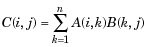
Each element in the (i, j)th position, in the resulting matrix C, is the summation of the products of elements in ith row of first matrix with the corresponding element in the jth column of the second matrix.
In MATLAB, matrix multiplication is performed by using the * operator.
>> A = [ 1 2 3 ; 4 5 6; 7 8 9];
>> B = [ 5 1 3 ; 6 4 8; 9 7 8];
>> M=A*B
M =
44 30 43
104 66 100
164 102 157
Determinant of a matrix is calculated using the det function of MATLAB. Determinant of a matrix A is given by det(A).
>> M = [ 1 2 3; 2 3 4; 1 2 5];
>> det(M)
ans =
-2
The inverse of a matrix A is denoted by A−1 such that the following relationship holds:
AA−1 = A−1A = I
The inverse of a matrix does not always exist. If the determinant of the matrix is zero, then the inverse does not exist and the matrix is singular.
In MATLAB, inverse of a matrix is calculated using the inv function. Inverse of a matrix A is given by inv(A).
>> a
a =
10 12 23
14 8 6
27 8 9
>> I=inv(a)
I =
-0.0140 -0.0442 0.0651
-0.0209 0.3087 -0.1523
0.0605 -0.1419 0.0512
>> b=inv(I)
b =
10.0000 12.0000 23.0000
14.0000 8.0000 6.0000
27.0000 8.0000 9.0000
>> a
a =
10 12 23
14 8 6
27 8 9
>> rank(a)
ans =
3
“rref(a)” command computes reduced row echelon form.
>> rref(a)
ans =
1 0 0
0 1 0
0 0 1
The trace of an m by n square matrix A is defined to be the sum of the elements on the main diagonal (the diagonal from the upper left to the lower right) of A.
>> A
A =
1 2 3
4 5 6
7 8 9
>> trace(A)
ans =
15
Syntax
d = eig(A)
d = eig(A,B)
[V,D] = eig(A)
[V,D] = eig(A,'nobalance')
[V,D] = eig(A,B)
[V,D] = eig(A,B,flag)
Description
d = eig(A) returns a vector of the eigen values of matrix A.
d = eig(A,B) returns a vector containing the generalized eigen values, if A and B are square matrices.
>> A
A =
1 2 3
4 5 6
7 8 9
>> eig(A)
ans =
16.1168
-1.1168
-0.0000
“fliplr()” function : Flip matrix left to right
Syntax
B = fliplr(A)
Description
B = fliplr(A) returns A with columns flipped in the left-right direction, that is, about a vertical axis.
>> A
A =
1 2 3
4 5 6
7 8 9
>> fliplr(A)
ans =
3 2 1
6 5 4
9 8 7
“flipud()” function : Flip matrix up to down
Syntax
B = flipud(A)
Description
B = flipud(A) returns A with rows flipped in the up-down direction, that is, about a horizontal axis.
If A is a column vector, then flipud(A) return sa vector of the same length with the order of its elements reversed. If A is a row vector, then flipud(A) simply returns A.
>> B
B =
5 1 3
6 4 8
9 7 8
>> C=flipud(B)
C =
9 7 8
6 4 8
5 1 3
“rot90()” function
Syntax
B = rot90(A)
B = rot90(A,k)
Description
B = rot90(A) rotates matrix A counterclockwiseby 90 degrees.
B = rot90(A,k) rotatesmatrix A counterclockwise by k*90 degrees,where k is an integer.
Examples
The matrix
>>X = [1 2 3; 4 5 6; 7 8 9];
Y = rot90(X) %rotated by 90 degrees is
Y =
3 6 9
2 5 8
1 4 7
“flipdim()” function: Flip array along specified dimension
Syntax
B = flipdim(A,dim)
Description
B = flipdim(A,dim) returns A with dimension dim flipped.
When the value of dim is 1, the array is flipped row-wise down. When dim is 2, the array is flipped column wise left to right. flipdim(A,1) is the same as flipud(A), and flipdim(A,2) is the same as fliplr(A).
Examples
flipdim(A,1) where
A =
1 4
2 5
3 6
produces
3 6
2 5
1 4
In this section, we will discuss some functions that create some special arrays. For all these functions, a single argument creates a square array, double arguments create rectangular array.
The ones() function creates an array of all ones:
>> ones(3)
ans =
1 1 1
1 1 1
1 1 1
>> ones(2,3)
ans =
1 1 1
1 1 1
The zeros() function creates an array of all zeros:
>> zeros(4)
ans =
0 0 0 0
0 0 0 0
0 0 0 0
0 0 0 0
>> zeros(3,2)
ans =
0 0
0 0
0 0
The eye() function creates an identity matrix.
>> eye(5)
ans =
1 0 0 0 0
0 1 0 0 0
0 0 1 0 0
0 0 0 1 0
0 0 0 0 1
The rand() function creates an array of uniformly distributed random numbers on (0,1).
>> rand(2,4)
ans =
0.8147 0.1270 0.6324 0.2785
0.9058 0.9134 0.0975 0.5469
A magic square is a square that produces the same sum, when its elements are added row-wise, column-wise or diagonally.
The magic() function creates a magic square array. It takes a singular argument that gives the size of the square. The argument must be a scalar greater than or equal to 3.
>> magic(3)
ans =
8 1 6
3 5 7
4 9 2
>> magic(4)
ans =
16 2 3 13
5 11 10 8
9 7 6 12
4 14 15 1
>> M=magic(3)
M =
8 1 6
3 5 7
4 9 2
>> sum(M) % returns the Sum of elements of rows
ans =
15 15 15
>> sum(M)' % returns the Sum of elements of columns
ans =
15
15
15
>> diag(M) % returns the Sum of the diagonal elements of a matrix
ans =
8
5
2
An array having more than two dimensions is called a multidimensional array in MATLAB. Multidimensional arrays in MATLAB are an extension of the normal two-dimensional matrix.
Generally to generate a multidimensional array, we first create a two-dimensional array and extend it.
For example, let's create a two-dimensional array a.
>>a = [7 9 5; 6 1 9; 4 3 2]
a =
7 9 5
6 1 9
4 3 2
The array a is a 3-by-3 array; we can add a third dimension to a, by providing the values like:
a(:, :, 2)= [ 1 2 3; 4 5 6; 7 8 9]
MATLAB will execute the above statement and return the following result:
a(:,:,1) =
7 9 5
6 1 9
4 3 2
a(:,:,2) =
1 2 3
4 5 6
7 8 9
We can also create multidimensional arrays using the ones(), zeros() or the rand() functions.
For example,
>>b = rand(4,3,2)
b(:,:,1) =
0.0344 0.7952 0.6463
0.4387 0.1869 0.7094
0.3816 0.4898 0.7547
0.7655 0.4456 0.2760
b(:,:,2) =
0.6797 0.4984 0.2238
0.6551 0.9597 0.7513
0.1626 0.3404 0.2551
0.1190 0.5853 0.5060
We can also use the cat() function to build multidimensional arrays. It concatenates a list of arrays along a specified dimension:
Syntax for the cat() function is:
B = cat(dim, A1, A2...)
Where,
Create a script file and type the following code into it:
a = [9 8 7; 6 5 4; 3 2 1];
b = [1 2 3; 4 5 6; 7 8 9];
c = cat(3, a, b, [ 2 3 1; 4 7 8; 3 9 0])
c(:,:,1) =
9 8 7
6 5 4
3 2 1
c(:,:,2) =
1 2 3
4 5 6
7 8 9
c(:,:,3) =
2 3 1
4 7 8
3 9 0
The following table shows various commands used for working with arrays, matrices and vectors:
Command |
Purpose |
cat |
Concatenates arrays. |
find |
Finds indices of nonzero elements. |
length |
Computes number of elements. |
linspace |
Creates regularly spaced vector. |
logspace |
Creates logarithmically spaced vector. |
max |
Returns largest element. |
min |
Returns smallest element. |
prod |
Product of each column. |
reshape |
Changes size. |
size |
Computes array size. |
sort |
Sorts each column. |
sum |
Sums each column. |
eye |
Creates an identity matrix. |
ones |
Creates an array of ones. |
zeros |
Creates an array of zeros. |
cross |
Computes matrix cross products. |
dot |
Computes matrix dot products. |
det |
Computes determinant of an array. |
inv |
Computes inverse of a matrix. |
pinv |
Computes pseudoinverse of a matrix. |
rank |
Computes rank of a matrix. |
rref |
Computes reduced row echelon form. |
cell |
Creates cell array. |
celldisp |
Displays cell array. |
cellplot |
Displays graphical representation of cell array. |
num2cell |
Converts numeric array to cell array. |
deal |
Matches input and output lists. |
iscell |
Identifies cell array. |
MATLAB provides the following functions to sort, rotate, permute, reshape, or shift array contents.
Function |
Purpose |
length |
Length of vector or largest array dimension |
ndims |
Number of array dimensions |
numel |
Number of array elements |
size |
Array dimensions |
iscolumn |
Determine whether input is column vector |
isempty |
Determine whether array is empty |
ismatrix |
Determine whether input is matrix |
isrow |
Determine whether input is row vector |
isscalar |
Determine whether input is scalar |
isvector |
Determine whether input is vector |
blkdiag |
Construct block diagonal matrix from input arguments |
circshift |
Shift array circularly |
ctranspose |
Complex conjugate transpose |
diag |
Diagonal matrices and diagonals of matrix |
flipdim |
Flip array along specified dimension |
fliplr |
Flip matrix left to right |
flipud |
Flip matrix up to down |
ipermute |
Inverse permute dimensions of N-D array |
permute |
Rearrange dimensions of N-D array |
repmat |
Replicate and tile array |
reshape |
Reshape array |
rot90 |
Rotate matrix 90 degrees |
shiftdim |
Shift dimensions |
issorted |
Determine whether set elements are in sorted order |
sort |
Sort array elements in ascending or descending order |
sortrows |
Sort rows in ascending order |
squeeze |
Remove singleton dimensions |
transpose |
Transpose |
vectorize |
Vectorize expression |
Learning outcomes
After completing this chapter, you will be able to understand:
So far, we have used MATLAB environment as a calculator. However, MATLAB is also a powerful programming language, as well as an interactive computational environment.
In previous chapters, you have learned how to enter commands from the MATLAB command prompt. MATLAB also allows you to write series of commands into a file and execute the file as complete unit, like writing a function and calling it.
MATLAB allows writing two kinds of program files:
Script files are program files with .m extension. In these files, you write series of commands, which you want to execute together. Scripts do not accept inputs and do not return any outputs. They operate on data in the workspace.
Functions files are also program files with .m extension. Functions can accept inputs and return outputs. Internal variables are local to the function.
You can use the MATLAB Editor or any other text editor to create your .m files. In this section, we will discuss the script files. A script file contains multiple sequential lines of MATLAB commands and function calls. You can run a script by typing its name at the command line.
Scripts are the simplest kind of program file because they have no input or output arguments. They are useful for automating series of MATLAB commands, such as computations that you have to perform repeatedly from the command line or series of commands you have to reference.
Although scripts do not return output arguments, any variables that they create remain in the workspace, so you can use them in further computations. In addition, scripts can produce graphical output using commands like plot.
Scripts can contain any series of MATLAB statements. They require no declarations or begin/end delimiters.
Like any MATLAB program, scripts can contain comments. Any text following a percent sign (%) on a given line is comment text. Comments can appear on lines by themselves, or you can append them to the end of any executable line.
You can open a new script in the following ways:
This code opens the file file_name: edit file_name.
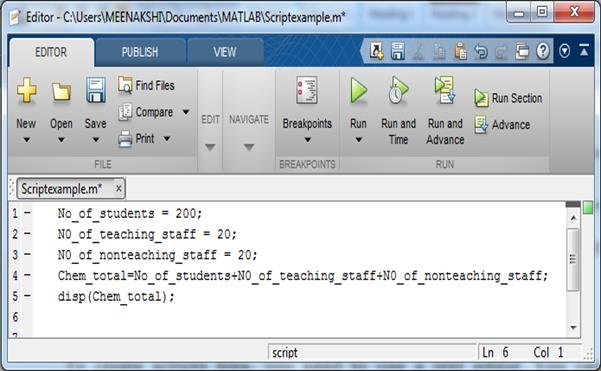
For example, suppose you save the following code as a script called Scriptexample.m

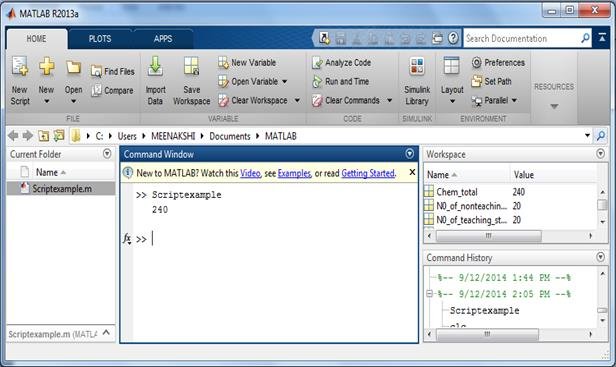
You can run the code in “Scriptexample.m” using either of these methods:

Learning outcomes
After completing this chapter, you will be able to understand:
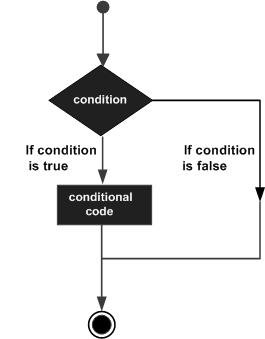
Decision making structures require that the programmer specify one or more conditions to be evaluated or tested by the program, along with a statement or statements to be executed if the condition is determined to be true, and optionally, other statements to be executed if the condition is determined to be false.
Following is the general form of a typical decision making structure found in most of the programming languages:
Statement |
Description |
if ... end statement |
An if ... end statement consists of a boolean expression followed by one or more statements. |
if ... else ... end statement |
An if statement can be followed by an optional else statement, which executes when the boolean expression is false. |
If... elseif ... elseif ... else ... end statements |
An if statement can be followed by an (or more) optional elseif...and an else statement, which is very useful to test various condition. |
nested if statements |
You can use one if or elseif statement inside another if or elseifstatement(s). |
switch statement |
A switch statement allows a variable to be tested for equality against a list of values. |
nested switch statements |
You can use one swicth statement inside another switchstatement(s). |
An if ... end statement consists of an if statement and a boolean expression followed by one or more statements. It is delimited by the end statement.
Syntax
if <expression>
% statement(s) will execute if the boolean expression is true
<statements>
end
Example:
Create a script file and type the following code:
n=input('Enter any number = ');
if n<100
fprintf('%f is less than 100',n);
end
When you run the file, it displays the following result:
Enter any number = 99
99.0000 is less than 100
An if statement can be followed by an optional else statement, which executes when the expression is false.
Syntax:
if <expression>
% statement(s) will execute if the boolean expression is true
<statement(s)>
else
<statement(s)>
% statement(s) will execute if the boolean expression is false
end
If the boolean expression evaluates to true, then the if block of code will be executed, otherwise else block of code will be executed.
Example:
Create a script file and type the following code:
n=input('Enter any number = ');
if mod(n,2)==0
fprintf('%f is an even number',n);
else
fprintf('%f is an odd number',n);
end
When the above code is compiled and executed, it produces the following result:
Enter any number = 9
9.0000 is an odd number
An if statement can be followed by an (or more) optional elseif... and an else statement, which is very useful to test various condition.
When using if... elseif...else statements, there are few points to keep in mind:
Syntax:
if <expression 1>
% Executes when the expression 1 is true
<statement(s)>
elseif <expression 2>
% Executes when the boolean expression 2 is true
<statement(s)>
Elseif <expression 3>
% Executes when the boolean expression 3 is true
<statement(s)>
else
% executes when the none of the above condition is true
<statement(s)>
end
Example
Create a script file and type the following code in it:
a = 100;
if a == 10
% if condition is true then print the following
fprintf('Value of a is 10\n' );
elseif( a == 20 )
% if else if condition is true
fprintf('Value of a is 20\n' );
elseif a == 30
% if else if condition is true
fprintf('Value of a is 30\n' );
else
% if none of the conditions is true '
fprintf('None of the values are matching\n');
fprintf('Exact value of a is: %d\n', a );
end
When the above code is compiled and executed, it produces the following result:
None of the values are matching
Exact value of a is: 100
It is always legal in MATLAB to nest if-else statements which means you can use one if or elseif statement inside another if or elseif statement(s).98
Syntax:
The syntax for a nested if statement is as follows:
if <expression 1>
% Executes when the boolean expression 1 is true
if <expression 2>
% Executes when the boolean expression 2 is true
end
end
You can nest elseif...else in the similar way as you have nested if statement.
Example:
Create a script file and type the following code in it:
a = 100;
b = 200;
% check the boolean condition
if( a == 100 )
% if condition is true then check the following
if( b == 200 )
% if condition is true then print the following
fprintf('Value of a is 100 and b is 200\n' );
end
end
fprintf('Exact value of a is : %d\n', a );
fprintf('Exact value of b is : %d\n', b );
When you run the file, it displays:
Value of a is 100 and b is 200
Exact value of a is : 100
Exact value of b is : 200
A switch block conditionally executes one set of statements from several choices. Each choice is covered by a case statement.
The switch block tests each case until one of the cases is true. A case is true when:
When a case is true, MATLAB executes the corresponding statements and then exits the switch block. The otherwise block is optional and executes only when no case is true.
Syntax
switch <switch_expression>
case <case_expression>
<statements>
case <case_expression>
<statements>
...
...
otherwise
<statements>
end
Example
Create a script file and type the following code in it:
grade = input('Enter your grade : ','s');
switch(grade)
case 'A'
fprintf('Excellent!\n' );
case 'B'
fprintf('Well done\n' );
case 'C'
fprintf('Can Do Better\n' );
case 'D'
fprintf('Just passed\n' );
case 'F'
fprintf('Better luck next time\n' );
otherwise
fprintf('Invalid grade\n' );
end
When you run the file, it displays:
Enter your grade : A
Excellent!
It is possible to have a switch as part of the statement sequence of an outer switch. Even if the case constants of the inner and outer switch contain common values, no conflicts will arise.
Syntax:
switch(ch1)
case 'A'
fprintf('This A is part of outer switch');
switch(ch2)
case 'A'
fprintf('This A is part of inner switch' );
case 'B'
fprintf('This B is part of inner switch' );
end
case 'B'
fprintf('This B is part of outer switch' );
end
Example:
Create a script file and type the following code in it:
a = 100;
b = 200;
switch(a)
case 100
fprintf('This is part of outer switch %d\n', a );
switch(b)
case 200
fprintf('This is part of inner switch %d\n', a );
end
end
fprintf('Exact value of a is : %d\n', a );
fprintf('Exact value of b is : %d\n', b );
When you run the file, it displays:
This is part of outer switch 100
This is part of inner switch 100
Exact value of a is : 100
Exact value of b is : 200
There may be a situation when you need to execute a block of code several number of times. In general, statements are executed sequentially. The first statement in a function is executed first, followed by the second, and so on.
Programming languages provide various control structures that allow for more complicated execution paths.
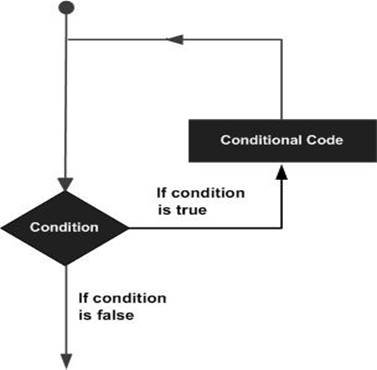
A loop statement allows us to execute a statement or group of statements multiple times and following is the general form of a loop statement in most of the programming languages:
Loop Type |
Description |
while loop |
Repeats a statement or group of statements while a given condition is true. It tests the condition before executing the loop body. |
for loop |
Executes a sequence of statements multiple times and abbreviates the code that manages the loop variable. |
nested loops |
You can use one or more loops inside any another loop. |
A while loop is a block of statements that are repeated indefinitely as long as some condition is satisfied.
Syntax:
while <expression>
<statements>
End
An expression is true when the result is nonempty and contains all nonzero elements (logical or real numeric). Otherwise, the expression is false.
Example
Create a script file and type the following code:
n=input('Enter any number = ');
a=1:n;
sum_a=0;
count=1;
while count<=length(a)
sum_a=sum_a+a(count);
count=count+1;
end
fprintf('The sum of %f is %f ',n,sum_a);
When you run the file, it displays the following result:
Enter any number = 10
The sum of 10 is 55
A for loop is a repetition control structure that allows you to efficiently write a loop that needs to execute a specific number of times.
Syntax:
for index = values
<program statements>
...
End
Example
Create a script file and type the following code:
x=1:10;
sum_a=0;
for i=1:length(a)
sum_a=sum_a+a(i);
end
disp(sum_a)
When you run the file, it displays the following result:
>>55
MATLAB allows using one loop inside another loop. Following section shows few examples to illustrate the concept.
Syntax:
The syntax for a nested for loop statement in MATLAB is as follows:
for m = 1:j
for n = 1:k
<statements>;
end
end
The syntax for a nested while loop statement in MATLAB is as follows:
while <expression1>
while <expression2>
<statements>
end
end
Example
Let us use a nested for loop to display all the prime numbers from 1 to 100. Create a script file and type the following code:
n=input('Enter any number = ');
for i=2:n
for j=2:n
if(~mod(i,j))
break; % if factor found, not prime
end
end
if(j > (i/j))
fprintf('%d is prime\n', i);
end
end
When you run the file, it displays the following result:
Enter any number = 5
2 is prime
3 is prime
5 is prime
Loop control statements change execution from its normal sequence. When execution leaves a scope, all automatic objects that were created in that scope are destroyed.
MATLAB supports the following control statements. Click the following links to check their detail.
Control Statement |
Description |
break statement |
Terminates the loop statement and transfers execution to the statement immediately following the loop. |
continue statement |
Causes the loop to skip the remainder of its body and immediately retest its condition prior to reiterating. |
The break statement terminates execution of for or while loop. Statements in the loop that appear after the break statement are not executed.
In nested loops, break exits only from the loop in which it occurs. Control passes to the statement following the end of that loop.
Example:
Create a script file and type the following code:
a = 10;
% while loop execution
while (a < 20 )
fprintf('value of a: %d\n', a);
a = a+1;
if( a > 15)
% terminate the loop using break statement
break;
end
end
When you run the file, it displays the following result:
value of a: 10
value of a: 11
value of a: 12
value of a: 13
value of a: 14
value of a: 15
The continue statement is used for passing control to next iteration of for or while loop.
The continue statement in MATLAB works somewhat like the break statement. Instead of forcing termination, however, 'continue' forces the next iteration of the loop to take place, skipping any code in between.
Example:
Create a script file and type the following code:
a = 10;
%while loop execution
while a < 20
if a == 15
% skip the iteration
a = a + 1;
continue;
end
fprintf('value of a: %d\n', a);
a = a + 1;
end
When you run the file, it displays the following result:
value of a: 10
value of a: 11
value of a: 12
value of a: 13
value of a: 14
value of a: 16
value of a: 17
value of a: 18
value of a: 19
Learning outcomes
After completing this chapter, you will be able to understand:
A function is a group of statements that together perform a task. In MATLAB, functions are defined in separate files.
Functions operate on variables within their own workspace, which is also called the local workspace, separate from the workspace you access at the MATLAB command prompt which is called the base workspace.
Functions can accept more than one input arguments and may return more than one output arguments
Syntax
function [out1,out2, ..., outN] = myfun(in1,in2,in3, ..., inN)
If your function returns more than one output, enclose the output names in square brackets, such as
function myfunction(x)
function [] = myfunction(x)
The following function named “cube” should be written in a file named “cube.m”. It take a number as argument and returns the cube of the given number.
Create a function file, named cube.m and type the following code in it:
function y = cube(x)
%calculate the third power of the given number
y = x^3;
end % end of cube function
Create a script file, named “Cubeofnumber.m” and type the following code in it:
n= input('Enter the any number');
c= cube(n);
disp(c);
Save both the files and run the script file. MATLAB will execute the above statement and return the following result:
Enter the any number 9
729
An anonymous function is a function that is not stored in a program file, but is associated with a variable whose data type is function_handle. Anonymous functions can accept inputs and return outputs, just as standard functions do. However, they can contain only a single executable statement.
You can define an anonymous function right at the MATLAB command line or within a function or script.
This way you can create simple functions without having to create a file for them.
The syntax for creating an anonymous function from an expression is
f = @(arglist)expression
This anonymous function accepts a single input and implicitly returns a single output.
In this example, we will write an anonymous function named power, which will take two numbers as input and return first number raised to the power of the second number.
Create a script file and type the following code in it:
power=@(x,n) x^n
Ans1=power(5,2);
Ans2=power(2,5);
disp(Ans1);
disp(Ans2);
When you run the file, it displays:
power =
@(x,n)x^n
25
32
MATLAB program files can contain code for more than one function. The first function in the file (the main function) is visible to functions in other files, or you can call it from the command line. Additional functions within the file are called local functions. Local functions are only visible to other functions in the same file. They are equivalent to subroutines in other programming languages, and are sometimes called subfunctions.
Local functions can occur in any order, as long as the main function appears first. Each function begins with its own function definition line.
For example
Let us write a function named quadratic that would calculate the roots of a quadratic equation. The function would take three inputs, the quadratic co-efficient, the linear co-efficient and the constant term. It would return the roots.
The function file quadratic.m will contain the primary function quadratic and the sub-function disc, which calculates the discriminant.
Create a function file quadratic.m and type the following code in it:
function [x1,x2] = quadratic(a,b,c)
%this function returns the roots of a quadratic equation. It takes 3 input arguments which are the co-efficients of x2, x and the constant term. It returns the roots.%
d = disc(a,b,c);
x1 = (-b + d) / (2*a);
x2 = (-b - d) / (2*a);
end
function dis = disc(a,b,c)
%function calculates the discriminant
dis = sqrt(b^2 - 4*a*c);
end % end of sub-function
You can call the above function from command prompt as:
quadratic(2,4,-4)
MATLAB will execute the above statement and return the following result:
ans =
0.7321
You can define functions within the body of another function. These are called nested functions. A nested function contains any or all of the components of any other function.
Nested functions are defined within the scope of another function and they share access to the containing function's workspace.
A nested function follows the following syntax:
function x = A(p1, p2)
...
B(p2)
function y = B(p3)
...
end
...
end
For Example
function parent
s=square2(6);
function y=square2(x)
y=x^2;
end
disp(s);
end
MATLAB will execute the above statement and return the following result:
parent
36
A private function is a primary function that is visible only to a limited group of other functions. If you do not want to expose the implementation of a function(s), you can create them as private functions.
Private functions reside in subfolders with the special name private.
They are visible only to functions in the parent folder.
Example:
Let us rewrite the quadratic function. This time, however, the disc function calculating the discriminant, will be a private function.
Create a subfolder named private in working directory. Store the following function file disc.m in it:
function dis = disc(a,b,c)
%function calculates the discriminant
dis = sqrt(b^2 - 4*a*c);
end % end of sub-function
Create a function quadratic.m in your working directory and type the following code in it:
function [x1,x2] = quadratic(a,b,c)
d = disc(a,b,c);
x1 = (-b + d) / (2*a);
x2 = (-b - d) / (2*a);
end
You can call the above function from command prompt as:
quadratic(2,4,-4)
MATLAB will execute the above statement and return the following result:
ans =
0.7321
Global variables can be shared by more than one function. For this, you need to declare the variable as global in all the functions.
If you want to access that variable from the base workspace, then declare the variable at the command line.
Example
Let us create a function file named average.m and type the following code in it:
function avg = average(nums)
global TOTAL
avg = sum(nums)/TOTAL;
end
Create a script file and type the following code in it:
global TOTAL;
TOTAL = 10;
n = [34, 45, 25, 45, 33, 19, 40, 34, 38, 42];
av = average(n)
When you run the file, it will display the following result:
av =
35.5000
Learning outcomes
After completing this chapter, you will be able to understand:
Importing data in MATLAB means loading data from an external file. The importdatafunction allows loading various data files of different formats. It has the following five forms:
S.N. |
Function and Description |
1 |
A=importdata(filename) |
2 |
A=importdata('-pastespecial') |
3 |
A=importdata(___, delimiterIn) |
4 |
A= importdata(___, delimiterIn, headerlinesIn) |
5 |
[A,delimiterOut,headerlinesOut]= importdata(___) |
By default, Octave does not have support for importdata() function, so you will have to search and install this package to make following examples work with your Octave installation.
Example 1
Let us load and display an image file. Create a script file and type the following code in it:
filename = 'smile.jpg';
A = importdata(filename);
image(A);
When you run the file, MATLAB displays the image file. However, you must store it in the current directory.

Example 2
In this example, we import a text file and specify Delimiter and Column Header. Let us create a space-delimited ASCII file with column headers, named weeklydata.txt.
Our text file weeklydata.txt looks like this:

Create a script file and type the following code in it:
filename = 'weeklydata.txt';
delimiterIn = ' ';
headerlinesIn = 1;
A = importdata (filename,delimiterIn,headerlinesIn);
% View data
for k = [1:7]
disp(A.colheaders{1, k})
disp(A.data(:, k))
disp(' ')
end
When you run the file, it displays the following result:
SunDay
95.0100
73.1100
60.6800
48.6000
89.1300
MonDay
76.2100
45.6500
41.8500
82.1400
44.4700
TuesDay
61.5400
79.1900
92.1800
73.8200
57.6300
WednesDay
40.5700
93.5500
91.6900
41.0300
89.3600
ThursDay
55.7900
75.2900
81.3200
0.9900
13.8900
FriDay
70.2800
69.8700
90.3800
67.2200
19.8800
SaturDay
81.5300
74.6800
74.5100
93.1800
46.6000
Example 3
In this example, let us import data from clipboard.
Copy the following lines to the clipboard:
Mathematics is simple
Create a script file and type the following code:
A = importdata('-pastespecial')
When you run the file, it displays the following result:
A =
'Mathematics is simple'
Low-Level File I/OThe importdata function is a high-level function. The low-level file I/O functions in MATLAB allow the most control over reading or writing data to a file. However, these functions need more detailed information about your file to work efficiently.
MATLAB provides the following functions for read and write operations at the byte or character level:
Function |
Description |
fclose |
Close one or all open files |
feof |
Test for end-of-file |
ferror |
Information about file I/O errors |
fgetl |
Read line from file, removing newline characters |
fgets |
Read line from file, keeping newline characters |
fopen |
Open file, or obtain information about open files |
fprintf |
Write data to text file |
fread |
Read data from binary file |
frewind |
Move file position indicator to beginning of open file |
fscanf |
Read data from text file |
fseek |
Move to specified position in file |
ftell |
Position in open file |
fwrite |
Write data to binary file |
MATLAB provides the following functions for low-level import of text data files:
Example
We have a text data file 'myfile.txt' saved in our working directory. The file stores rainfall data for three months; June, July and August for the year 2012.
The data in myfile.txt contains repeated sets of time, month and rainfall measurements at five places. The header data stores the number of months M; so we have M sets of measurements.
The file looks like this:
Rainfall Data
Months: June, July, August
M=3
12:00:00
June-2012
17.21 28.52 39.78 16.55 23.67
19.15 0.35 17.57 NaN 12.01
17.92 28.49 17.40 17.06 11.09
9.59 9.33 NaN 0.31 0.23
10.46 13.17 NaN 14.89 19.33
20.97 19.50 17.65 14.45 14.00
18.23 10.34 17.95 16.46 19.34
09:10:02
July-2012
12.76 16.94 14.38 11.86 16.89
20.46 23.17 NaN 24.89 19.33
30.97 49.50 47.65 24.45 34.00
18.23 30.34 27.95 16.46 19.34
30.46 33.17 NaN 34.89 29.33
30.97 49.50 47.65 24.45 34.00
28.67 30.34 27.95 36.46 29.34
15:03:40
August-2012
17.09 16.55 19.59 17.25 19.22
17.54 11.45 13.48 22.55 24.01
NaN 21.19 25.85 25.05 27.21
26.79 24.98 12.23 16.99 18.67
17.54 11.45 13.48 22.55 24.01
NaN 21.19 25.85 25.05 27.21
26.79 24.98 12.23 16.99 18.67
We will import data from this file and display this data. Take the following steps:
For example, to read the headers and return the single value for M, we write:
M = fscanf(fid, '%*s %*s\n%*s %*s %*s %*s\nM=%d\n\n', 1);
Create a script file and type the following code in it:
filename = '/data/myfile.txt';
rows = 7;
cols = 5;
% open the file
fid = fopen(filename);
% read the file headers, find M (number of months)
M = fscanf(fid, '%*s %*s\n%*s %*s %*s %*s\nM=%d\n\n', 1);
% read each set of measurements
for n = 1:M
mydata(n).time = fscanf(fid, '%s', 1);
mydata(n).month = fscanf(fid, '%s', 1);
% fscanf fills the array in column order,
% so transpose the results
mydata(n).raindata = ...
fscanf(fid, '%f', [rows, cols]);
end
for n = 1:M
disp(mydata(n).time), disp(mydata(n).month)
disp(mydata(n).raindata)
end
% close the file
fclose(fid);
When you run the file, it displays the following result:
12:00:00
June-2012
17.2100 17.5700 11.0900 13.1700 14.4500
28.5200 NaN 9.5900 NaN 14.0000
39.7800 12.0100 9.3300 14.8900 18.2300
16.5500 17.9200 NaN 19.3300 10.3400
23.6700 28.4900 0.3100 20.9700 17.9500
19.1500 17.4000 0.2300 19.5000 16.4600
0.3500 17.0600 10.4600 17.6500 19.3400
09:10:02
July-2012
12.7600 NaN 34.0000 33.1700 24.4500
16.9400 24.8900 18.2300 NaN 34.0000
14.3800 19.3300 30.3400 34.8900 28.6700
11.8600 30.9700 27.9500 29.3300 30.3400
16.8900 49.5000 16.4600 30.9700 27.9500
20.4600 47.6500 19.3400 49.5000 36.4600
23.1700 24.4500 30.4600 47.6500 29.3400
15:03:40
August-2012
17.0900 13.4800 27.2100 11.4500 25.0500
16.5500 22.5500 26.7900 13.4800 27.2100
19.5900 24.0100 24.9800 22.5500 26.7900
17.2500 NaN 12.2300 24.0100 24.9800
19.2200 21.1900 16.9900 NaN 12.2300
17.5400 25.8500 18.6700 21.1900 16.9900
11.4500 25.0500 17.5400 25.8500 18.6700
Data export in MATLAB means to write into files. MATLAB allows you to use your data in another application that reads ASCII files. For this, MATLAB provides several data export options.
You can create the following type of files:
Apart from this, you can also export data to spreadsheets.
There are two ways to export a numeric array as a delimited ASCII data file:
Syntax for using the save function is:
save my_data.out num_array -ASCII
where, my_data.out is the delimited ASCII data file created, num_array is a numeric array and �ASCII is the specifier.
Syntax for using the dlmwrite function is:
dlmwrite('my_data.out', num_array, 'dlm_char')
where, my_data.out is the delimited ASCII data file created, num_array is a numeric array and dlm_charis the delimiter character.
Example
The following example demonstrates the concept. Create a script file and type the following code:
num_array = [ 1 2 3 4 ; 4 5 6 7; 7 8 9 0];
save array_data1.out num_array -ASCII;
type array_data1.out
dlmwrite('array_data2.out', num_array, ' ');
type array_data2.out
When you run the file, it displays the following result:
1.0000000e+00 2.0000000e+00 3.0000000e+00 4.0000000e+00
4.0000000e+00 5.0000000e+00 6.0000000e+00 7.0000000e+00
7.0000000e+00 8.0000000e+00 9.0000000e+00 0.0000000e+00
1 2 3 4
4 5 6 7
7 8 9 0
Please note that the save -ascii command and the dlmwrite command does not work with cell arrays as input. To create a delimited ASCII file from the contents of a cell array, you can
If you use the save function to write a character array to an ASCII file, it writes the ASCII equivalent of the characters to the file.
For example, let us write the word 'hello' to a file:
h = 'hello';
save textdata.out h -ascii
type textdata.out
MATLAB executes the above statements and displays the following result:
1.0400000e+02 1.0100000e+02 1.0800000e+02 1.0800000e+02 1.1100000e+02
Which are the characters of the string 'hello' in 8-digit ASCII format.
Writing to Diary FilesDiary files are activity logs of your MATLAB session. The diary function creates an exact copy of your session in a disk file, excluding graphics.
To turn on the diary function, type:
diary
Optionally, you can give the name of the log file, say:
diary logdata.out
To turn off the diary function:
diary off
You can open the diary file in a text editor.
Exporting Data to Text Data Files with Low-Level I/OSo far, we have exported numeric arrays. However, you may need to create other text files, including combinations of numeric and character data, nonrectangular output files, or files with non-ASCII encoding schemes. For these purposes, MATLAB provides the low-level fprintf function.
As in low-level I/O file activities, before exporting, you need to open or create a file with the fopenfunction and get the file identifier. By default, fopen opens a file for read-only access. You should specify the permission to write or append, such as 'w' or 'a'.
After processing the file, you need to close it with fclose(fid) function.
The following example demonstrates the concept:
Example
Create a script file and type the following code in it:
% create a matrix y, with two rows
x = 0:10:100;
y = [x; log(x)];
% open a file for writing
fid = fopen('logtable.txt', 'w');
% Table Header
fprintf(fid, 'Log Function\n\n');
% print values in column order
% two values appear on each row of the file
fprintf(fid, '%f %f\n', y);
fclose(fid);
% display the file created
type logtable.txt
When you run the file, it displays the following result:
Log Function
0.000000 -Inf
10.000000 2.302585
20.000000 2.995732
30.000000 3.401197
40.000000 3.688879
50.000000 3.912023
60.000000 4.094345
70.000000 4.248495
80.000000 4.382027
90.000000 4.499810
100.000000 4.605170
Learning outcomes
After completing this chapter, you will be able to understand:
The MATLAB environment offers a variety of data plotting functions plus a set of GUI tools to create, and modify graphic displays. The GUI tools afford most of the control over graphic properties and options that typed commands such as annotate, get, and set provide.
A figure is a MATLAB window that contains graphic displays (usually data plots) and UI components. You create figures explicitly with the figure function, and implicitly whenever you plot graphics and no figure is active. By default, figure windows are resizable and include pull-down menus and toolbars.
A plot is any graphic display you can create within a figure window. Plots can display tabular data, geometric objects, surface and image objects, and annotations such as titles, legends, and color bars. Figures can contain any number of plots. Each plot is created within a 2-D or a 3-D data space called axes. You can explicitly create axes with the axes or subplot functions.
A graph is a plot of data within a 2-D or 3-D axes. Most plots made with MATLAB functions and GUIs are therefore graphs. When you graph a one-dimensional variable(e.g., rand(100,1)), the indices of the data vector(in this case 1:100) become assigned as x values, and plots the data vector as y values. Some types of graphs can display more than one variable at a time, others cannot.
To plot the graph of a function, you need to take the following steps:
Following example would demonstrate the concept. Let us plot the simple function y = x for the range of values for x from 0 to 100, with an increment of 5.
Create a script file and type the following code:
x = [0:5:100];
y = x;
plot(x, y)
When you run the file, MATLAB displays the following plot:

MATLAB allows you to add title, labels along the x-axis and y-axis, grid lines and also to adjust the axes to spruce up the graph.
Example
Create a script file and type the following code:
x = [0:0.01:20];
y = cos(x);
plot(x, y)
xlabel('x')
ylabel('Cos(x)')
title('Cos(x) Graph')
grid on
axis equal
MATLAB generates the following graph:

You can draw multiple graphs on the same plot. The following example demonstrates the concept:
Create a script file and type the following code:
x = [0 : 0.01: 10];
y = sin(x);
z = cos(x);
plot(x, y, x, z)
MATLAB generates the following graph:

Plotting functions accept string specifiers as arguments and modify the graph generated accordingly. Three components can be specified in the string specifiers along with the plotting command. They are:
Line Style Specifiers
You indicate the line styles, marker types, and colors you want to display using string specifiers, detailed in the following tables:
Specifier |
LineStyle |
'-' |
Solid line (default) |
'--' |
Dashed line |
':' |
Dotted line |
'-.' |
Dash-dot line |
Marker Specifiers
Specifier |
Marker Type |
'+' |
Plus sign |
'o' |
Circle |
'*' |
Asterisk |
'.' |
Point |
'x' |
Cross |
'square' or 's' |
Square |
'diamond' or 'd' |
Diamond |
'^' |
Upward-pointing triangle |
'v' |
Downward-pointing triangle |
'>' |
Right-pointing triangle |
'<' |
Left-pointing triangle |
'pentagram' or 'p' |
Five-pointed star (pentagram) |
'hexagram' or 'h''' |
Six-pointed star (hexagram) |
Color Specifiers
Specifier |
Color |
r |
Red |
g |
Green |
b |
Blue |
c |
Cyan |
m |
Magenta |
y |
Yellow |
k |
Black |
w |
White |
Related Properties
This page also describes how to specify the properties of lines used for plotting. MATLAB® graphics give you control over these visual characteristics:
For Example:
figure
x = 0:pi/20:2*pi;
plot(x,sin(x),'m-o')
hold on
plot(x,sin(x-pi/2),'g-*')
plot(x,sin(x-pi/4),'b-s')
hold off

Example:
x=[0,1,2,3,4,5,6,7];
y=[0,1,2,3,4,5,6,7];
plot(x,y,'g-d','LineWidth',2,'MarkerEdgeColor','r','MarkerFaceColor','y','MarkerSize',8)
xlabel('x-axis')
ylabel('y-axis')
title('y=x GRAPH')

The axis command allows you to set the axis scales. You can provide minimum and maximum values for x and y axes using the axis command in the following way:
axis ( [xmin xmax ymin ymax] )
The following example shows this:
Create a script file and type the following code:
x = [0 : 0.01: 10];
y = exp(-x).* sin(2*x + 3);
plot(x, y), axis([0 10 -1 1])
When you run the file, MATLAB generates the following graph:

When you create an array of plots in the same figure, each of these plots is called a subplot. The subplot command is for creating subplots.
Syntax for the command is:
subplot(m, n, p)
where m and n are the number of rows and columns of the plot array and p specifies where to put a particular plot.
Each plot created with the subplot command can have its own characteristics. Following example demonstrates the concept:
Let us generate two plots:
y = e−1.5x sin (10x)
y = e−2x sin (10x)
Create a script file and type the following code:
x = [0:0.01:5];
y = exp(-1.5*x).*sin(10*x);
subplot(1,2,1)
plot(x,y)
xlabel('x')
ylabel('exp(–1.5x)*sin(10x)')
axis([0 5 -1 1])
y = exp(-2*x).*sin(10*x);
subplot(1,2,2)
plot(x,y)
xlabel('x')
ylabel('exp(–2x)*sin(10x)')
axis([0 5 -1 1])
When you run the file, MATLAB generates the following graph:

The bar function distributes bars along the x-axis. Elements in the same row of a matrix are grouped together. For example, if a matrix has five rows and three columns, then bar displays five groups of three bars along the x-axis. The first cluster of bars represents the elements in the first row of Y.
Y = [5 2 1; 8 7 3; 9 8 6; 5 5 5; 4 3 2];
figure
bar(Y)

The barh function distributes bars along the y-axis. Elements in the same row of a matrix are grouped together.
A = [1 2 3; 4 5 6; 7 8 9];
figure
barh(A)

D3 = [1 4 2 5; 6 3 2 5; 7 8 4 5; 2 4 6 5];
figure
bar3(D3)

The bar3h function draws each element as a separate 3-D block and distributes the elements of each column along the z-axis.
H3 = [1 4 2 5; 6 3 2 5; 7 8 4 5; 2 4 6 5];
figure
bar3h(H3)

'stairs(X,Y)' plots the elements in Y at the locations specified in X. The inputs X and Y must be vectors or matrices of the same size. Additionally, X can be a row or column vector and Y must be a matrix with length(X) rows.
Create a stairstep plot of a sine wave evaluated at equally spaced values between 0 and 6pie.
Specify the set of x values for the plot.
figure
X = linspace(0, 6*pi, 60);
Y = sin(X);
stairs(X,Y)

stem(X,Y) plots the data sequence, Y at values specified by X. The X and Y inputs must be vectors or matries of the same size. Additionally, X can be a row or column vector and Y must be a matrix with length(X) rows.
Create a stem plot of a sine wave evaluated at equally spaced values between 0 and 2pi and specify the set of x values for the stem plot.
figure
X = linspace(0,2*pi,50)';
Y = sin(X)
stem(X,Y)

'pie(X)' draws apie chart using the data in X. Each element in X is represented as a slice in the pie chart.
figure
x=[9 1 3 5 7 8]
pie(x);

The pie function creates one text object and one patch object for each pie slice. By default, MATLAB® labels each pie slice with the percentage of the whole that slice represents.
Note: To specify simple text labels, pass the strings directly to the pie function. For example, pie(x,{'Item A','Item B','Item C'}). |
The polar function accepts polar coordinates, plots them in a Cartesian plane, and draws the polar grid on the plane, polar (theta,rho) creates a polar coordinate plot of the angle theta versus the radius rho. theta is the angle from the x-axis to the radius vector specified in radians; rho is the length of the radius vector specified in data space units.
polar(theta,rho,LineSpec) LineSpec specifies the line type, plot symbol and color for the lines drawn in the polar plot.
Create a simple polar plot:
figure
t = 0:.01:2*pi;
polar(t,sin(2*t).*cos(2*t))

Three-dimensional plots basically display a surface defined by a function in two variables, g = f (x,y). Before we define g we need to create a set of (x,y) points over the domain of the function using the meshgrid command. Next, we assign the function itself. Finally, we use the surf command to create a surface plot.
The following example demonstrates the concept:
Example
Let us create a 3D surface map for the function g = xe-(x2 + y2)
Create a script file and type the following code:
figure
[x,y] = meshgrid(-2:.2:2);
g = x .* exp(-x.^2 - y.^2);
surf(x, y, g)
When you run the file, MATLAB displays the following 3-D map:
A contour line of a function of two variables is a curve along which the function has a constant value. Contour lines are used for creating contour maps by joining points of equal elevation above a given level, such as mean sea level.
MATLAB provides a contour function for drawing contour maps.
Example:
Let us generate a contour map that shows the contour lines for a given function g = f(x, y). This function has two variables. So, we will have to generate two independent variables, i.e., two data sets x and y. This is done by calling the meshgrid command.
The meshgrid command is used for generating a matrix of elements that give the range over x and y along with the specification of increment in each case.
Let us plot our function g = f(x, y), where −5 ≤ x ≤ 5, −3 ≤ y ≤ 3. Let us take an increment of 0.1 for both the values.
The variables are set as:
[x,y] = meshgrid(–5:0.1:5, –3:0.1:3);
Lastly, we need to assign the function. Let our function be: x2 + y2
Create a script file and type the following code:
[x,y] = meshgrid(-3:0.1:3,-3:0.1:3); %independent variables
g = x.^2 + y.^2; % our function
contour(x,y,g)
When you run the file, MATLAB displays the following contour map: